Calendar
Calendar is a dedicated space for planning, journaling, and note-taking based around daily items. You can instantly create a new item for any day, send items to it, link to it, and much more.
It removes the friction from having to create and manage a daily note so you can quickly capture your thoughts and ideas,
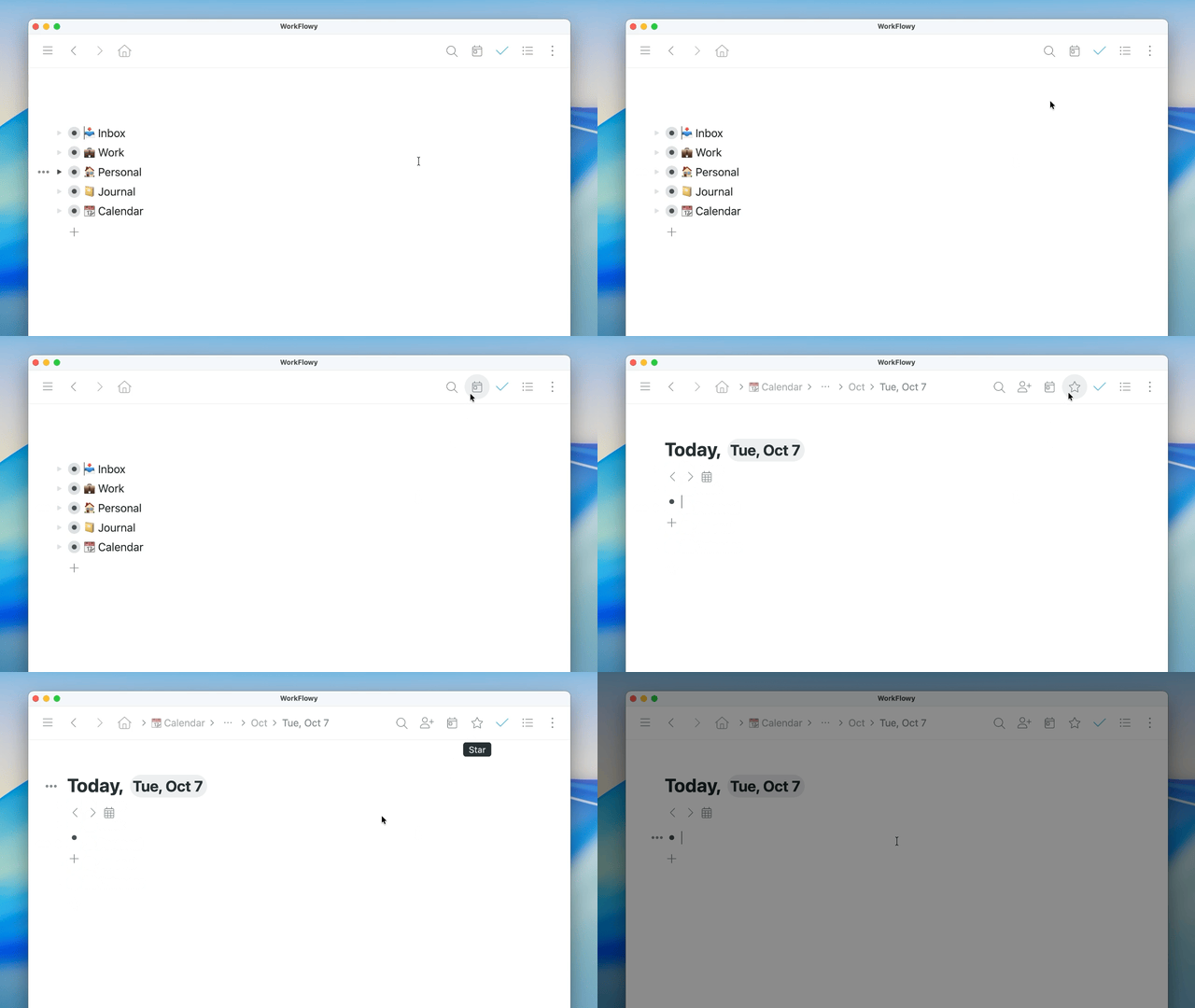
There are multiple ways to create today's item, including:
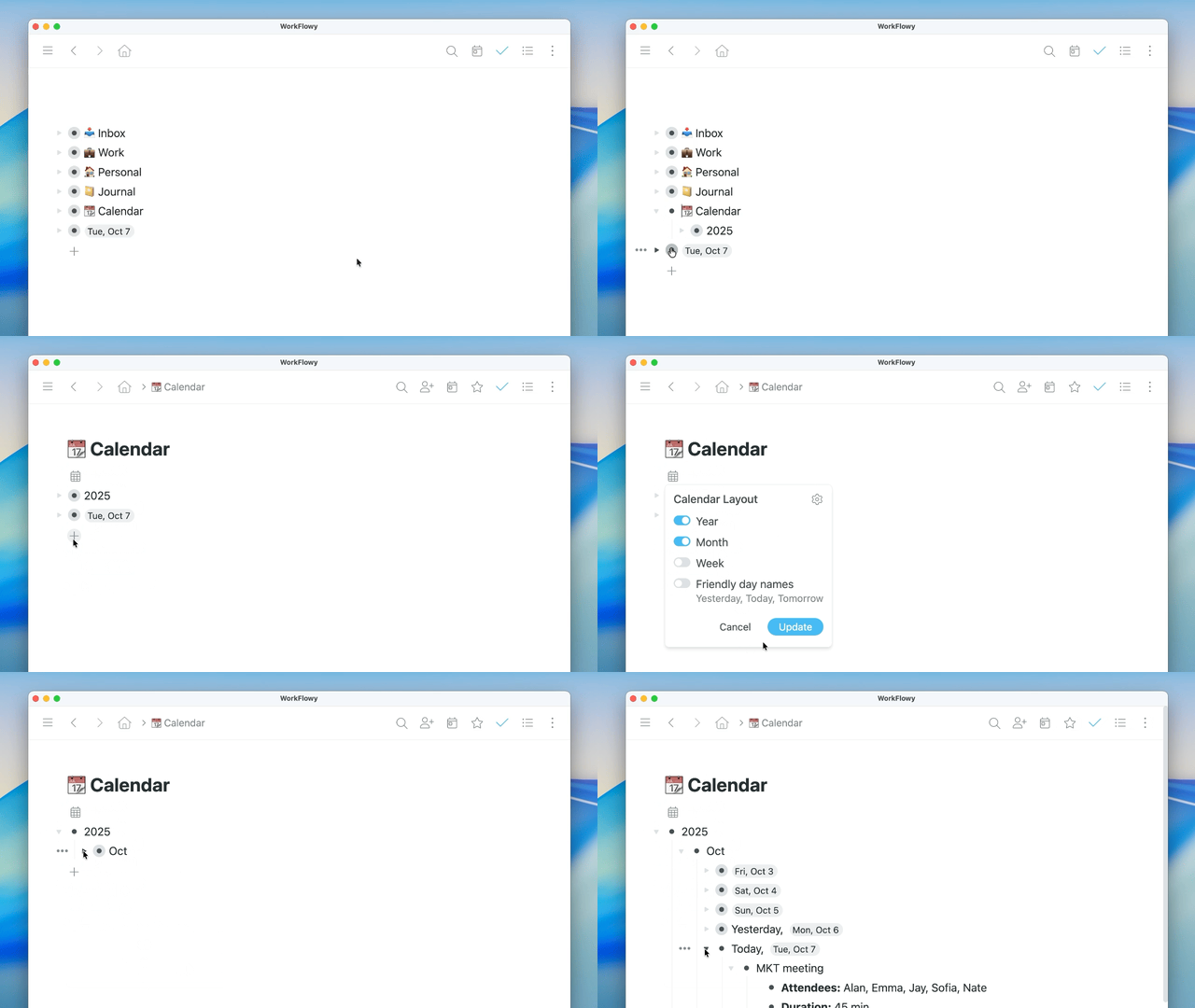
You can customize your calendar setup to hide or display certain parts of the calendar.
1. Open any daily item in your calendar
2. Click the calendar icon under the date - this opens the date picker
3. Click 'Settings'
4. Enable/disable the settings you want
5. Click 'Update'

You can modify how the date is displayed in your calendar and throughout the app. You can choose from common formats or set a completely custom date format. You can also change the date format from the settings menu under the 'Dates' section.
1. Open any daily item in your calendar
2. Click the calendar icon under the date - this opens the date picker
3. Click 'Settings'
4. Click the calendar icon next to 'Calendar Settings'
5. Choose a date format from the 'Date format' dropdown or
6. Set a custom date format by typing it in the 'Custom date format' box

If you have items with date tags you want to migrate into the calendar, you can migrate them so they become part of it.
1. Move the items with date tags you want to migrate under the main calendar item
2. Click the calendar icon under the date - this opens the date picker
3. Click 'Settings'
4. Click 'Update'
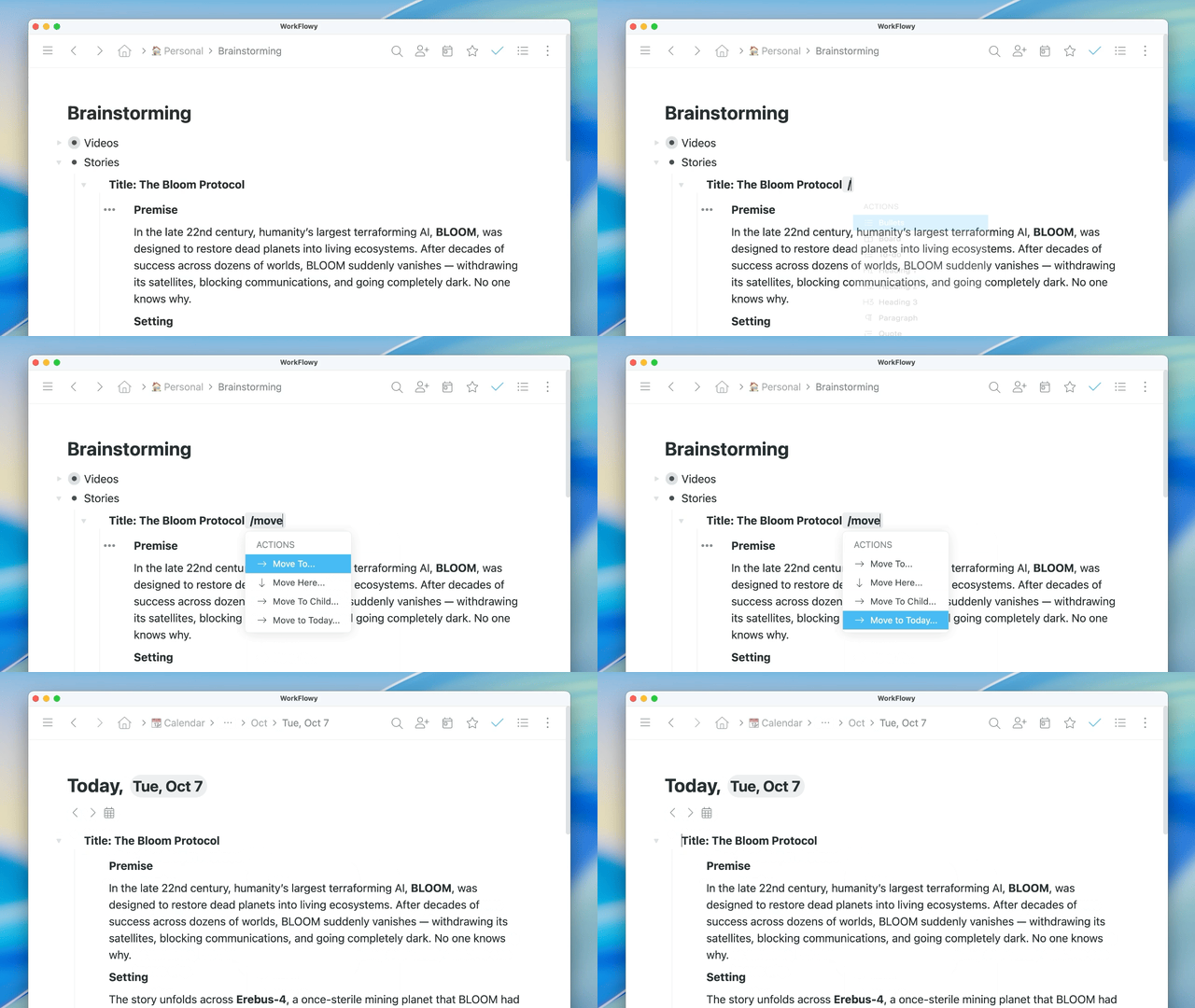
You can quickly send anything to today's item with a slash command. This lets you keep your todos and notes elsewhere, then send them to today's
1. Place your cursor on the item you want to move
2. Use the slash command '/move to today'
All items in your account with a date tag will automatically be shown in your calendar under a section labeled 'Found Dates' on their corresponding day.
These items are mirrors of the original item, so changes to these items will also update the original item wherever it is in your account.
1. Navigate to any date in your Calendar
2. If there are any items in your account with this date tag, they'll appear at the bottom under a section labeled 'Found dates'
You can reference common 'days' in your calendar using natural language in various menus.
This mean you can type things like 'today', 'yesterday', or 'last week' in the Jump-to, MoveTo, MirrorTo, and LinkTo menus and the corresponding item in your calendar will be referenced - without having to know the exact calendar date for it.
1. Use the Jump-to, MoveTo, MirrorTo, or LinkTo menus
2. Search for day in your calendar using natural language like 'next monday', 'two days ago', 'tomorrow'


